
A semester of study, a dozen chats
Plenty of students study with AI along the way. In a survey of Canadian post-secondary students run by Academica Group in February 2026, 84% had tried generative AI, and 73% of those had used it for support with their coursework.
Over a semester, that makes a lot of chats: one per topic, per assignment, per late-night question. Each one holds something useful. None of them holds the whole course.
What a good study merge keeps
A merge isn't every message from every chat. It's one starting point for reviewing:
- The course and the topics, in the order the course covered them.
- The explanations that worked, one per topic.
- What you corrected: where an early chat got it wrong and a later one, your notes or your instructor set it straight.
- What's still shaky: the topics you want to review most.
And it leaves out the rest: repeated questions, explanations you didn't follow, tangents.
Merge your study chats by hand
- Pick the chats that belong to one course. Leave the others out.
- List the topics each chat covered, in course order.
- Copy the best explanation for each topic, in a few lines.
- Note the corrections: when two chats disagree, check your notes and keep what the course says.
- Open a fresh chat with this message:
I'm reviewing for an exam. Below is what I studied over several earlier chats.

COURSE: [course name, and what the exam covers]

TOPICS, IN ORDER:
- [topic]: [the explanation that worked for me]
- [topic]: [the explanation that worked for me]

CORRECTIONS:
- [what was wrong] → [what my notes say]

STILL SHAKY:
- [topic]

Quiz me on these topics, one question at a time. Don't give me the answer until I've tried.
The last line matters: it turns the new chat into a review partner instead of a summary machine.
One course, one merge.
Merging works for chats about the same course. Putting two courses together makes a longer prompt, not a clearer one. And the review happens before the exam: never use AI during an exam, and follow your course's rules on AI.
The faster way: Merge, in Uncook
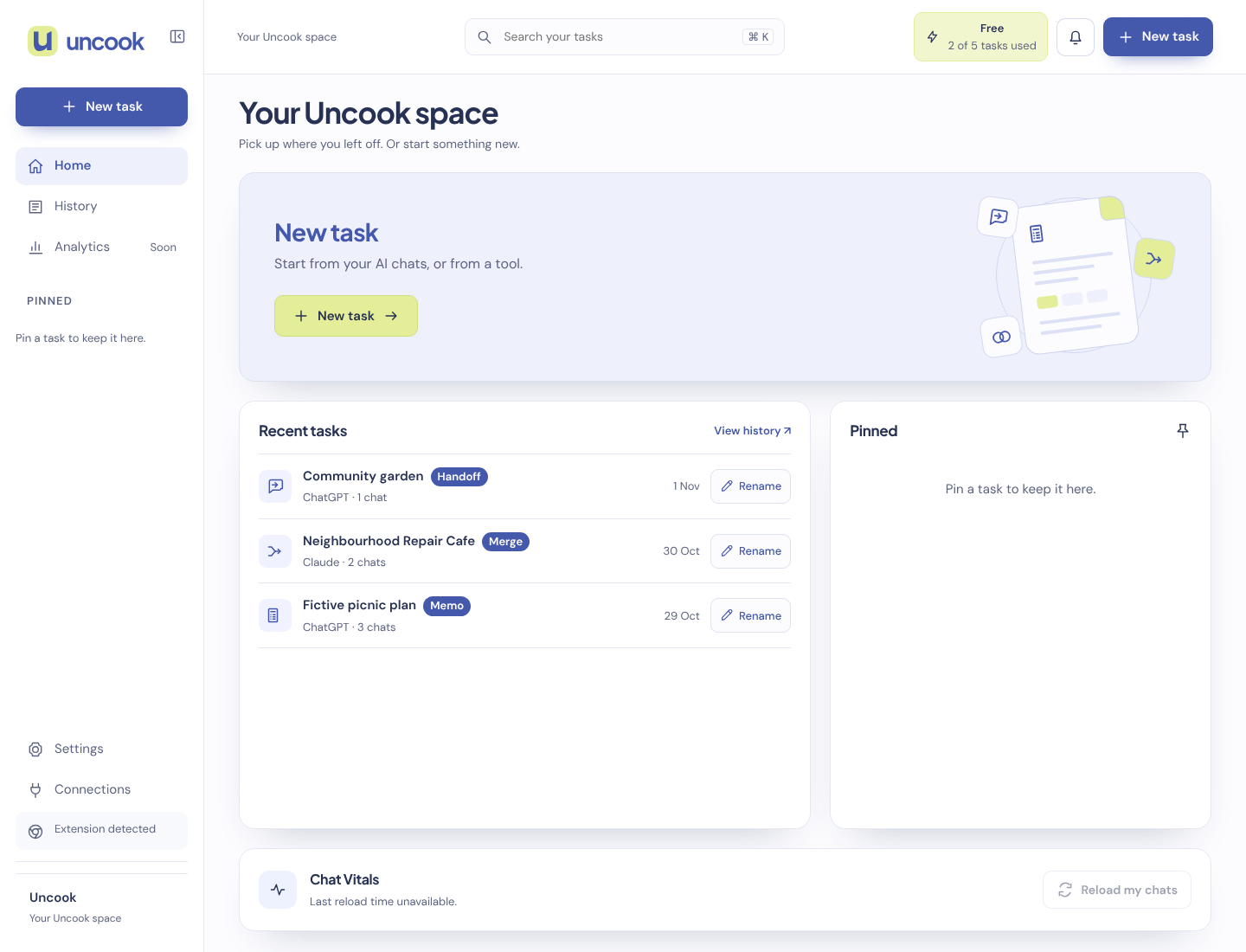
Going through a dozen chats to pull out the good explanations is the slow part. Uncook's Merge does it for you. With the Uncook extension, pick the chats you want to bring together, even from different AIs like ChatGPT and Gemini, and choose Merge. You get one prompt with the goal, what's settled in each chat, the rules and where things stand. Copy it into a fresh chat.
Check the account limits in the tool box below.; with a pack or Pro, you can bring more at once. When two chats disagree, check against your notes: you know the course, the merge doesn't.
Want something to read instead of a prompt? A review sheet made with Summarize may suit you better.
How to review with it
- Ask to be quizzed, not told. Try each answer before you look.
- Explain it back: ask the AI to point out what's missing from your explanation.
- Go back to the source: for anything that will be on the exam, your notes and course materials have the last word.
The AI helps you practise. The studying, and the exam, are yours.
Questions people ask
Does merging delete my old chats? No. Your chats stay where they are. Merge only reads them.
Can I merge a ChatGPT chat with a Gemini chat? Yes. The chats can come from the supported AIs, and the prompt works in any AI.
Is it allowed to study with AI? It depends on your course. The rules on AI differ between courses and institutions. If you're not sure, ask your instructor. More on that: is AI allowed in my course?
We don't keep the conversations you bring. When you click Send to Uncook in the extension window, the extension sends the chat from your tab to our servers, encrypted, for up to 30 minutes, and we delete it as soon as your Uncook page opens it. What Uncook makes from it is kept as a task, for as long as our Privacy page says. Neither your chats nor your tasks are used to train AI models.