
Why Copilot stops a long chat
Like every AI chat, Microsoft Copilot (copilot.microsoft.com) works from the whole conversation each time it answers, and it can only take in so much at once. A long chat, especially one with documents or lots of back-and-forth, ends up too big. Copilot then shows something like "Sorry, this conversation has reached its limit. Let's start a new chat."
Microsoft doesn't publish an exact limit, and it can vary. What matters is that this chat is full: the way forward is a new one.
What not to do first
- Don't keep resending your message. The chat is full, and retrying won't make room.
- Don't start the new chat from scratch. With none of your context, you'll explain everything again.
- Don't paste the whole old chat into the new one. It brings back the bulk that filled the first.
Start a new chat, with a handoff
A handoff is a short first message that gives the new chat what it needs:
- The goal, in one or two sentences.
- What's decided: the choices you don't want reopened.
- The rules: tone, format, length, what to avoid.
- Where you stopped, and the next step.
I'm continuing work from an earlier Copilot chat that reached its limit. Here's what you need.

GOAL: [what I'm trying to do]

ALREADY DECIDED (don't reopen):
- [decision 1]
- [decision 2]

RULES:
- [rule 1]
- [rule 2]

WHERE WE ARE: [last version, or where we stopped]
NEXT: [what I need now]

Confirm you've got this, then let's continue.
It works in any AI.
A handoff is plain text. You can start the new chat in Copilot, or carry on in ChatGPT, Gemini or Claude if you prefer.
The faster way: let Uncook write it
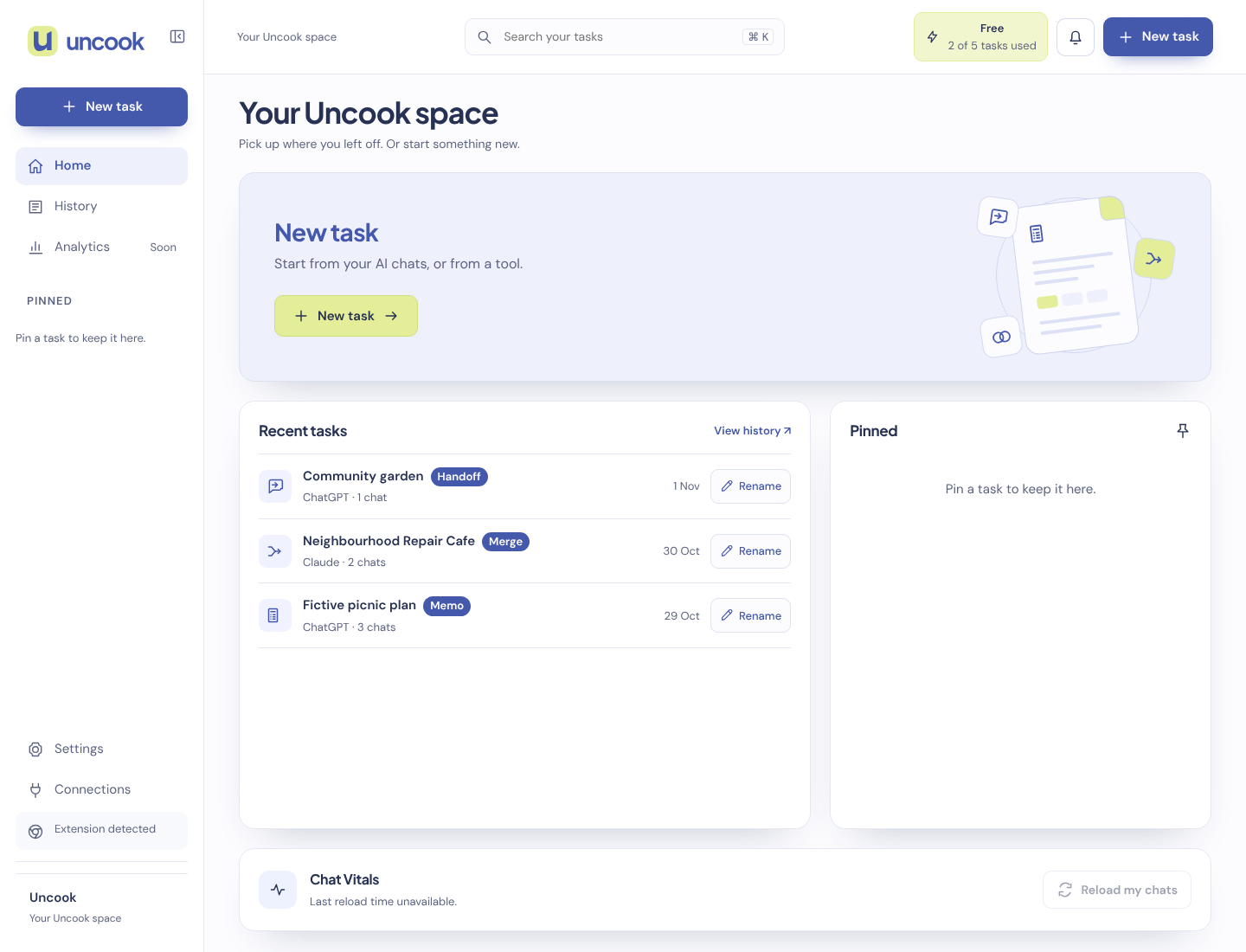
Scrolling back through a full chat to find every decision is the slow part. Uncook's Handoff does it. Open the chat in Copilot, click the Uncook icon and pick Handoff. You get your goal, what's decided, the rules you set and where you stopped. Copy it into a new chat, or click Continue in your AI to open a new chat, with the prompt in it on sites where you've allowed Uncook, or copied for you to paste.
Want to move to ChatGPT or Gemini instead? Use Handoff: how to move a Copilot chat to ChatGPT.
Questions people ask
Is my old Copilot chat lost? No. It stays in your Copilot history, and you can still open and read it.
Can I raise Copilot's limit? Not for a chat that's already full. A shorter chat, started from a handoff, has room again.
Does it work in the Copilot app on my phone? The Uncook extension runs in Chrome on a computer. On a phone, write the handoff by hand with the template above.
We don't keep the conversations you bring. When you click Send to Uncook in the extension window, the extension sends the chat from your tab to our servers, encrypted, for up to 30 minutes, and we delete it as soon as your Uncook page opens it. What Uncook makes from it is kept as a task, for as long as our Privacy page says. Neither your chats nor your tasks are used to train AI models.