
Gemini's import: your whole history, not one chat
Since March 2026, Gemini can import your chat history from ChatGPT or Claude. You export your data from ChatGPT, get a .zip file, and upload it in Gemini's settings. Your old conversations then show up in Gemini's list.
That's useful when you're moving for good. It's less useful when you just want to continue one piece of work: the imported chat is a record of what was said, not a starting point that tells Gemini what you decided and what comes next. And attachments like project files don't come along.
To pick up one conversation and keep working, give Gemini a short opening message instead: a handoff.
Why pasting the whole chat rarely works
The instinct is to copy the whole ChatGPT chat and paste it into Gemini. In a long chat, that's dozens of turns: drafts you replaced, ideas you dropped, corrections. Gemini has to work out on its own what still counts, and it may hold on to something you abandoned an hour ago.
Gemini was never in the first chat. Give it the conclusions, not the transcript.
Move one chat by hand
- The goal, in one or two sentences.
- What's decided: the choices you don't want reopened.
- The rules: tone, format, length, what to avoid.
- Where you are: what's done, and the next step.
- Send it first in a new Gemini chat.
You're continuing work I started in ChatGPT. Here's what you need to pick it up.

GOAL: [what we're making or deciding]

DECIDED (don't reopen):
- [decision 1]
- [decision 2]

RULES:
- [rule 1]
- [rule 2]

WHERE WE ARE: [current state]
NEXT: [the next step]

Confirm you've understood, then help me with the next step.
What doesn't come along.
A handoff carries what's in the chat. Files you uploaded, images, ChatGPT's memory of you and your custom instructions stay behind: add them again in Gemini if you need them.
The faster way: Handoff, in Uncook
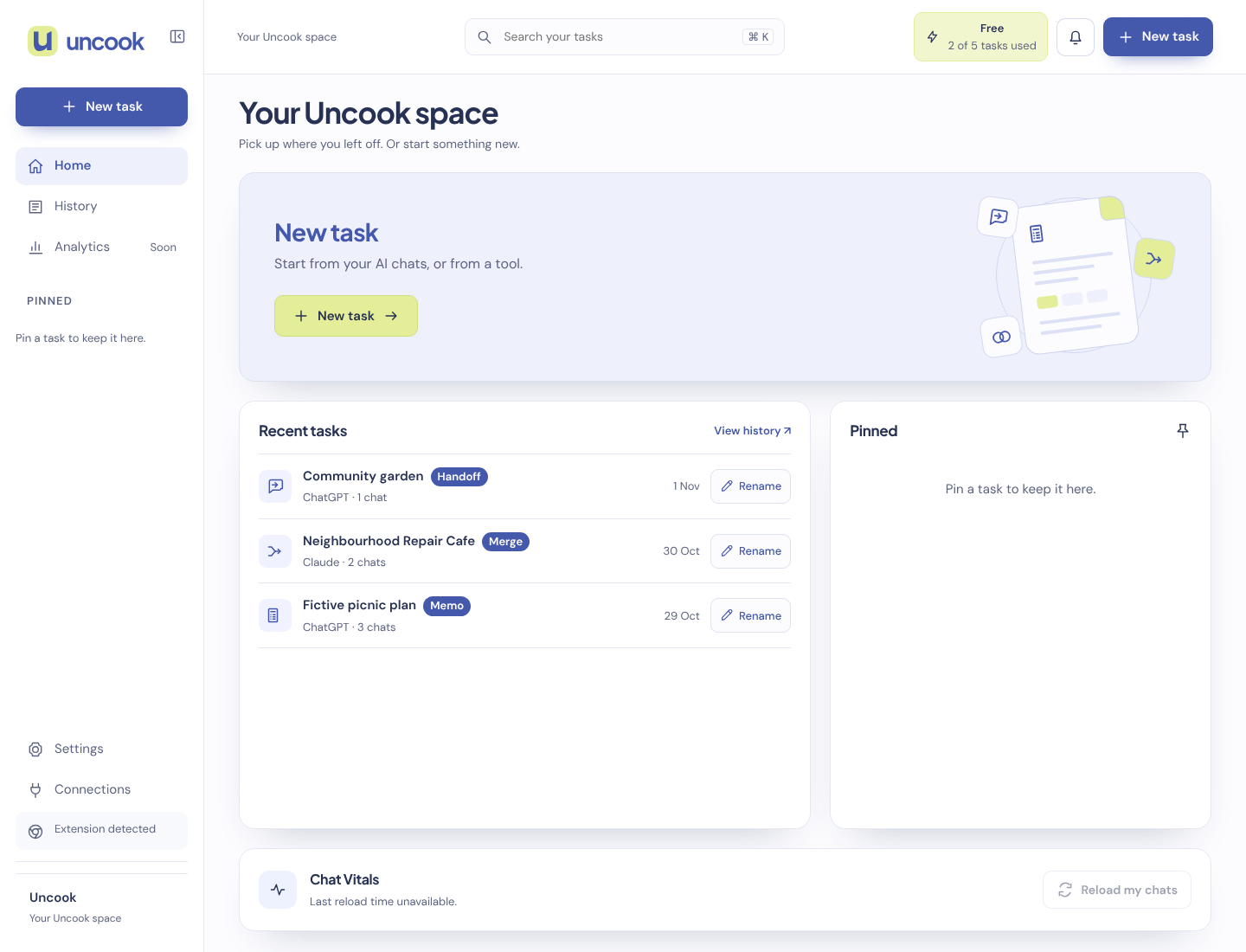
Uncook's Handoff writes that opening message for you, addressed to the AI you're moving to. On the ChatGPT page, click the Uncook icon, pick Handoff, turn on Switch to another AI and choose Gemini. You get the decisions, the reasons you gave and the questions still open. Copy it into Gemini, or click Continue in Gemini to open a new Gemini chat, with the prompt in it on sites where you've allowed Uncook, or copied for you to paste.
Ask each AI the same question in a fresh chat, then compare their claims, sources and omissions. If you want a shorter version of several chats, choose Summarize in Uncook; the task cost is shown before you start. A summary does not check which answer is correct. how to compare ChatGPT and Gemini answers
From Gemini back to ChatGPT
It works the same way in the other direction. Open the chat in Gemini, click the Uncook icon, pick Handoff, turn on Switch to another AI and choose ChatGPT. The extension reads Gemini chats too, so you can go back and forth as the work needs.
Questions people ask
Will Gemini answer the way ChatGPT did? Not exactly. Each AI has its own style. Put the tone and format you want in the rules.
Should I use Gemini's import or a handoff? Use the import to bring your whole history over for good. Use a handoff to continue one conversation where you left it. You can do both.
Can I move a Gemini chat to Claude? Yes. Open it in Gemini, pick Handoff, turn on Switch to another AI and choose Claude.
Does it work on my phone? The Uncook extension runs in Chrome on a computer. On a phone, write the handoff by hand with the template above.
We don't keep the conversations you bring. When you click Send to Uncook in the extension window, the extension sends the chat from your tab to our servers, encrypted, for up to 30 minutes, and we delete it as soon as your Uncook page opens it. What Uncook makes from it is kept as a task, for as long as our Privacy page says. Neither your chats nor your tasks are used to train AI models.