
Where the free year came from
The old promotion help link now redirects to OpenAI’s general ChatGPT Go page. It does not establish the end date of your individual offer. Check the information shown in your account.
What happens at the end of the free year depends on the terms you accepted when you signed up, and offers like this one can change. Check your plan in your ChatGPT account settings, and read OpenAI's current terms for the offer, before you count on anything.
Why keep a copy now
An offer ending does not by itself tell you what will happen to your history. Read the current terms instead of assuming it will be deleted.
It's about having your own copy, outside the app. A year of daily use adds up: study notes, a project plan, a cover letter you rewrote six times, answers you checked and want to find again. Today they live only in one account. A file on your computer is yours whatever you decide next, and it's much easier to search, share or hand in than a chat you have to scroll through.
Decide calmly.
Saving your chats first means you can make the plan decision on its own merits, without the worry of what you might leave behind.
Which chats to keep
You don't need all of them. Go through your history and pick:
- Chats you'll go back to: notes for an exam, a long explanation you understood at last, a project still running.
- Chats with decisions in them: what you chose, and why, in a plan or a piece of writing.
- Chats you may need to show: work you'll hand in or share, if your college or your employer asks how you used AI.
- Chats too long to scroll: if finding one answer takes five minutes, it's worth a clean file.
Leave the quick one-off questions. They're easy to ask again.
Three ways to save a chat
Print to PDF from the browser. Open the chat, press Ctrl+P (or Cmd+P on a Mac) and choose Save as PDF. It's free and built in. On a long chat the result is often messy: the page layout comes along, long code blocks get cut, and you may need to scroll up first so the whole chat is loaded.
Export all your data from ChatGPT. In ChatGPT, go to Settings, then Data controls, then Export data. You get an email with a link to a .zip file of your whole history. It contains the chat history and other account data made available by ChatGPT: good for a backup, heavy for the five chats you actually care about.
Copy and paste. It works for a short answer. For a long chat, it's slow, and the formatting rarely survives.
The faster way: Export, in Uncook
With the Uncook extension, open the chat in ChatGPT, click the Uncook icon and choose Export. Pick PDF, Markdown or plain text, and you get the chat itself, clean: your messages and the answers, without the page around them.
It's free, PDF included, and it doesn't count as a task. It works on long chats, one chat at a time, so you keep exactly the ones you picked. And if some of your work is in Gemini, Claude or Perplexity too, it works there the same way.
Keep the gist, not just the file
A 200-message chat saved as a PDF is safe, but still long. For the chats you'll actually reuse, a short version helps:
- Summarize gives you the essentials of a chat: what it's about, what's decided, where it stands, what's open. On one chat, it's free within the daily limit.
- Memo makes a clear document of what's decided, what changed along the way, what was set aside and what doesn't add up. See the tool box for task usage.
Both can be exported as PDF, Markdown, text or Word. And if you decide to carry on in another AI, a chat can go with you: see ChatGPT Go, Gemini and Perplexity: how to use all three.
Questions people ask
Will I lose my chats when the free year ends? Check OpenAI’s current terms and the information shown in your account; this guide does not predict what an individual offer changes.
Is Export free? Yes. Export is free, PDF included, and it doesn't count as a task. It runs in your browser, and the chat isn't sent to our servers.
Can I do it on my phone? The Uncook extension runs in Chrome on a computer. On a phone, use your browser's share or print menu, or ChatGPT's own data export.
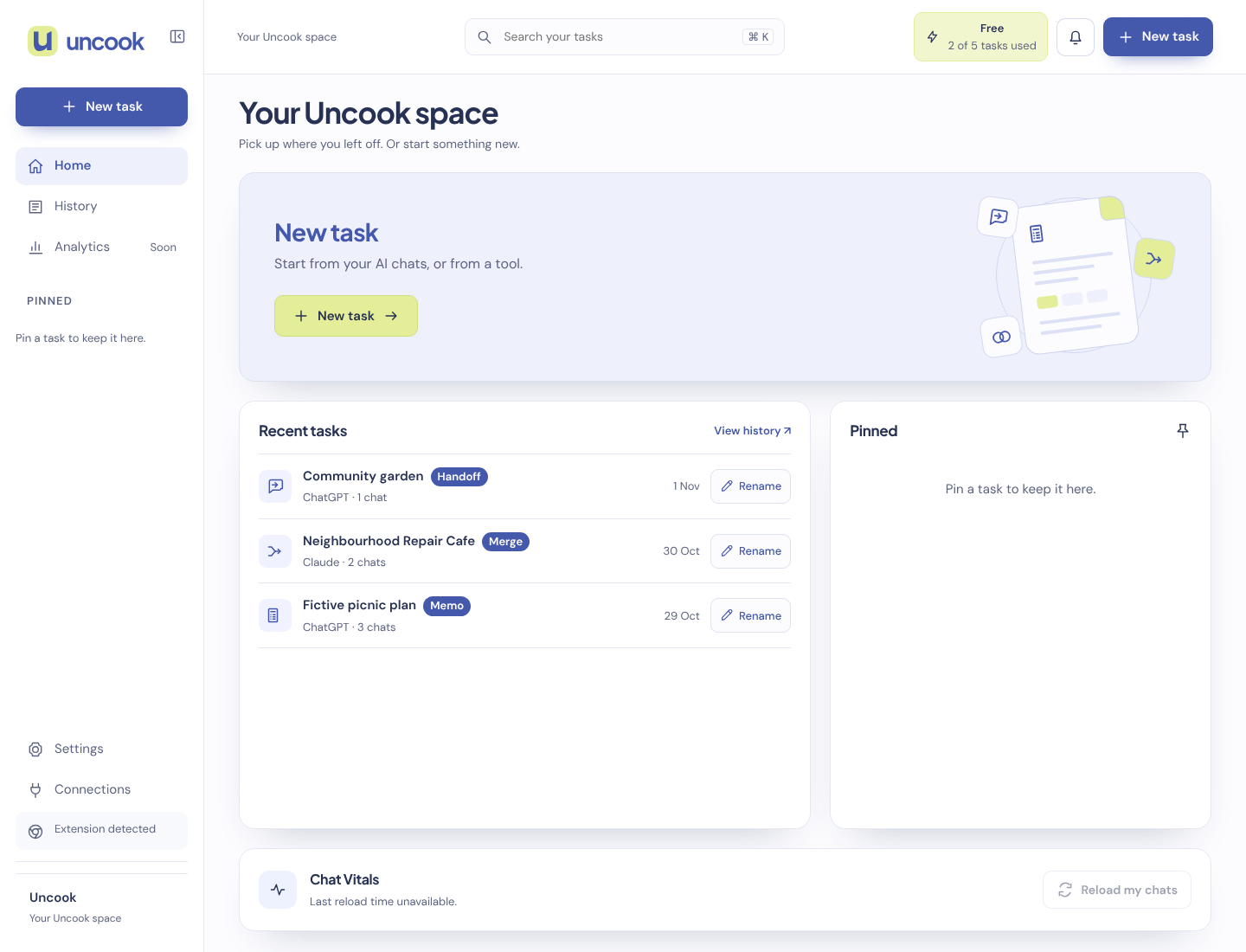
Export runs in your browser, through the extension. The chat isn't sent to our servers, and nothing is kept on our side.
We don't keep the conversations you bring. When you click Send to Uncook in the extension window, the extension sends the chat from your tab to our servers, encrypted, for up to 30 minutes, and we delete it as soon as your Uncook page opens it. What Uncook makes from it is kept as a task, for as long as our Privacy page says. Neither your chats nor your tasks are used to train AI models.