
What NTU says
In a statement published on 24 June 2025, NTU set out its position: in general, students are allowed to use Gen AI in their assignments. Some professors may prohibit it for certain assignments, for specific teaching reasons. And students are expected to declare any use of AI, and how they used it.
The same statement said three students had been penalised in a course where the professor had disallowed AI for a specific written assignment. In short: the default is yes, but the course rules decide. Read the instructions for each assignment.
Why a record helps when you declare
"How did you use AI?" is a fair question with a hard answer if you're relying on memory. A copy of the chats you used lets you:
- See exactly what you asked, and when.
- Point to what you kept, what you changed and what you rejected.
- Write a declaration that matches what happened.
How to keep a good record
- Check the assignment rules first. If AI isn't allowed, don't use it.
- Save the chats you actually used, as they were. Don't edit them.
- Save them as you go, not on the night of the deadline.
- Keep them somewhere you control, as PDF or text, so they don't depend on an AI's history settings.
What a record isn't
A record is not proof.
An exported chat shows what was said in the chat. It doesn't prove the work you submitted is yours, and it doesn't make a use of AI acceptable if the assignment didn't allow it. Your drafts, your notes and what you can explain yourself are what count.
Save a chat in one click
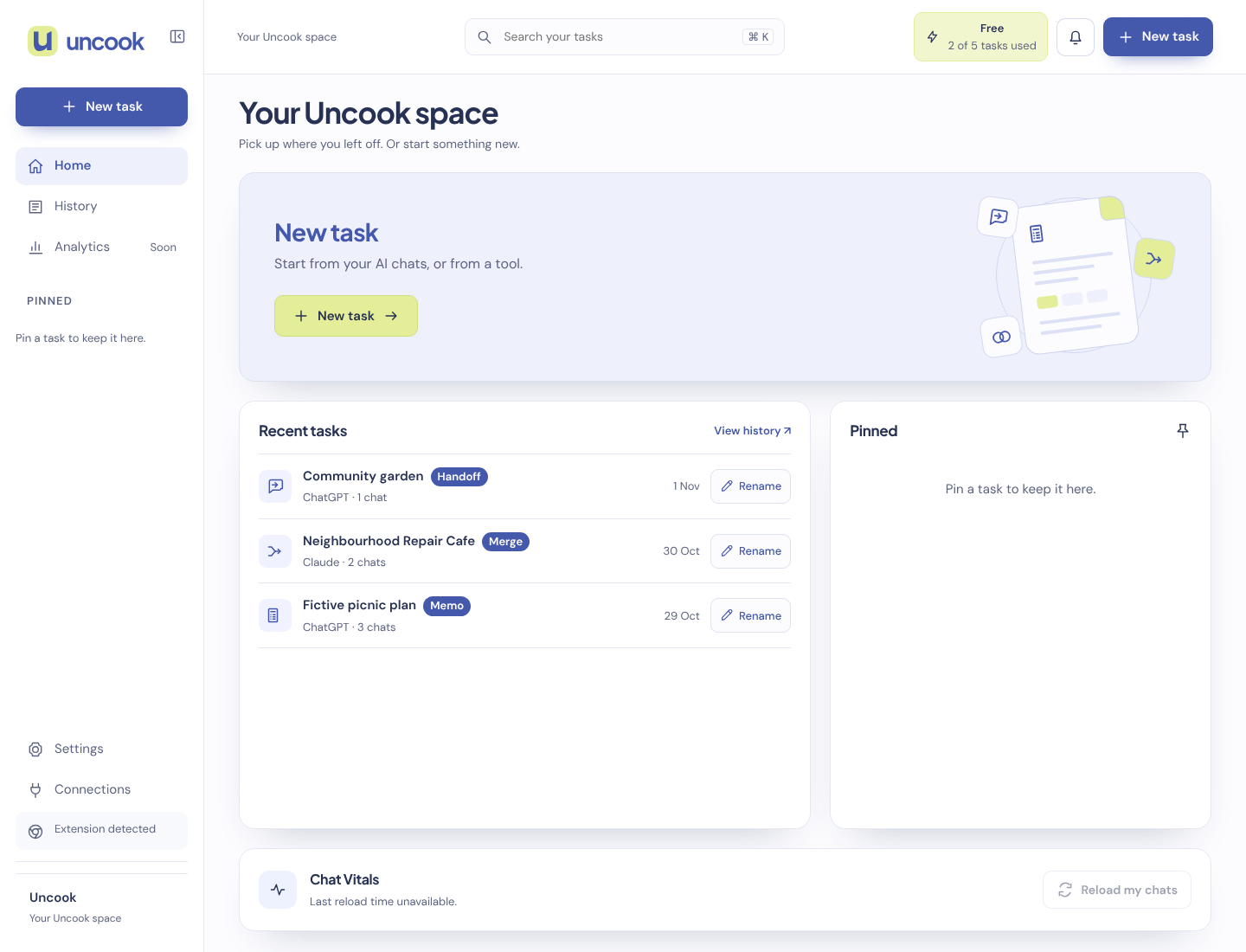
Uncook's Export saves a chat as PDF, Markdown or plain text, with your messages and the AI's answers. On the ChatGPT page, click the Uncook icon and pick Export. You can also use it with a supported Claude or Gemini chat in desktop Chrome.
Export is free, and it doesn't count as a task.
Questions people ask
Is this only for NTU? No. Other universities have their own rules, and many ask students to explain their AI use. Check your own.
Should I tidy up the chat before saving it? No. A record is only useful if it's what really happened.
Can I share a link instead? If your course allows it. But a link depends on the chat staying in your account and on its share settings. A PDF is yours to keep.
Export runs in your browser, through the extension. The chat isn't sent to our servers, and nothing is kept on our side.